
With WHIP, the presenter page itself sends the presenter's camera and microphone to a WHIP address you provide. That can be a WHIP service (such as Cloudflare or Dolby/Millicast) or your own server. With a gateway such as MediaMTX, you can take it into your studio as SRT.
Browsers can't send SRT themselves, so WHIP is how a presenter gets into an SRT workflow with nothing to install.
Set it up
- Set up your WHIP server with one address per presenter (see the MediaMTX example below).
- On your booking, in the presenter's seat, choose Studio connection: WHIP and paste the WHIP address. Add the WHIP token if your server needs one.
- Press Save seats, then press Open on the seat to check it connects.
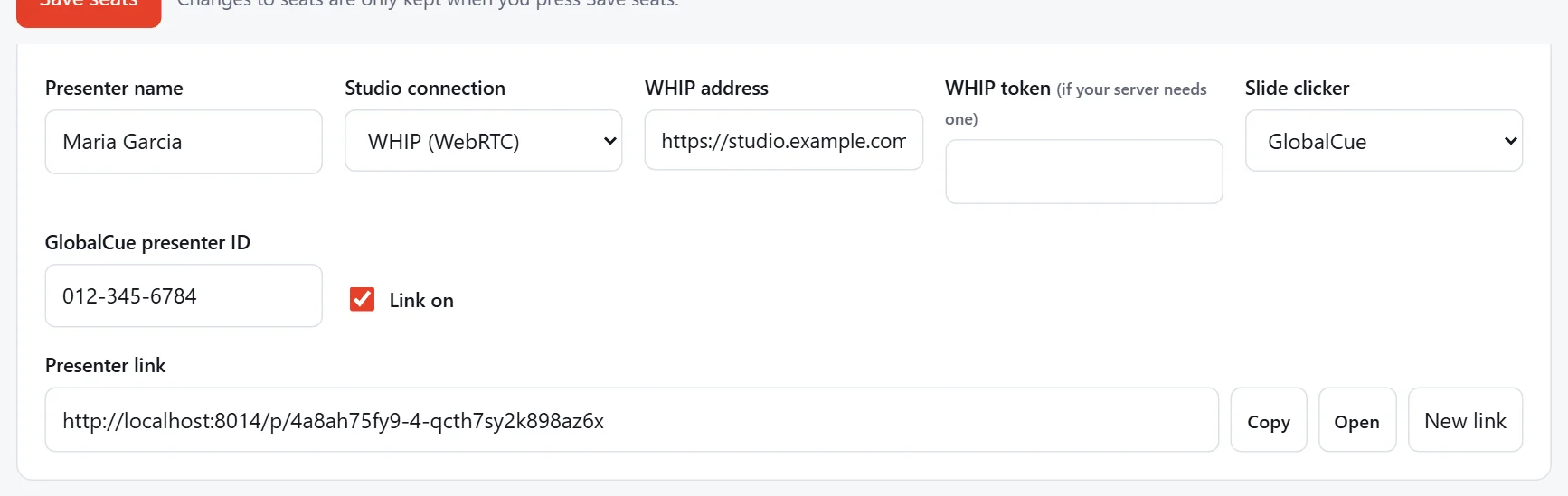
The address must start with https://: a secure page can't send to an http:// address. Your server must also allow requests from presenteringest.com (CORS).
What the presenter sees
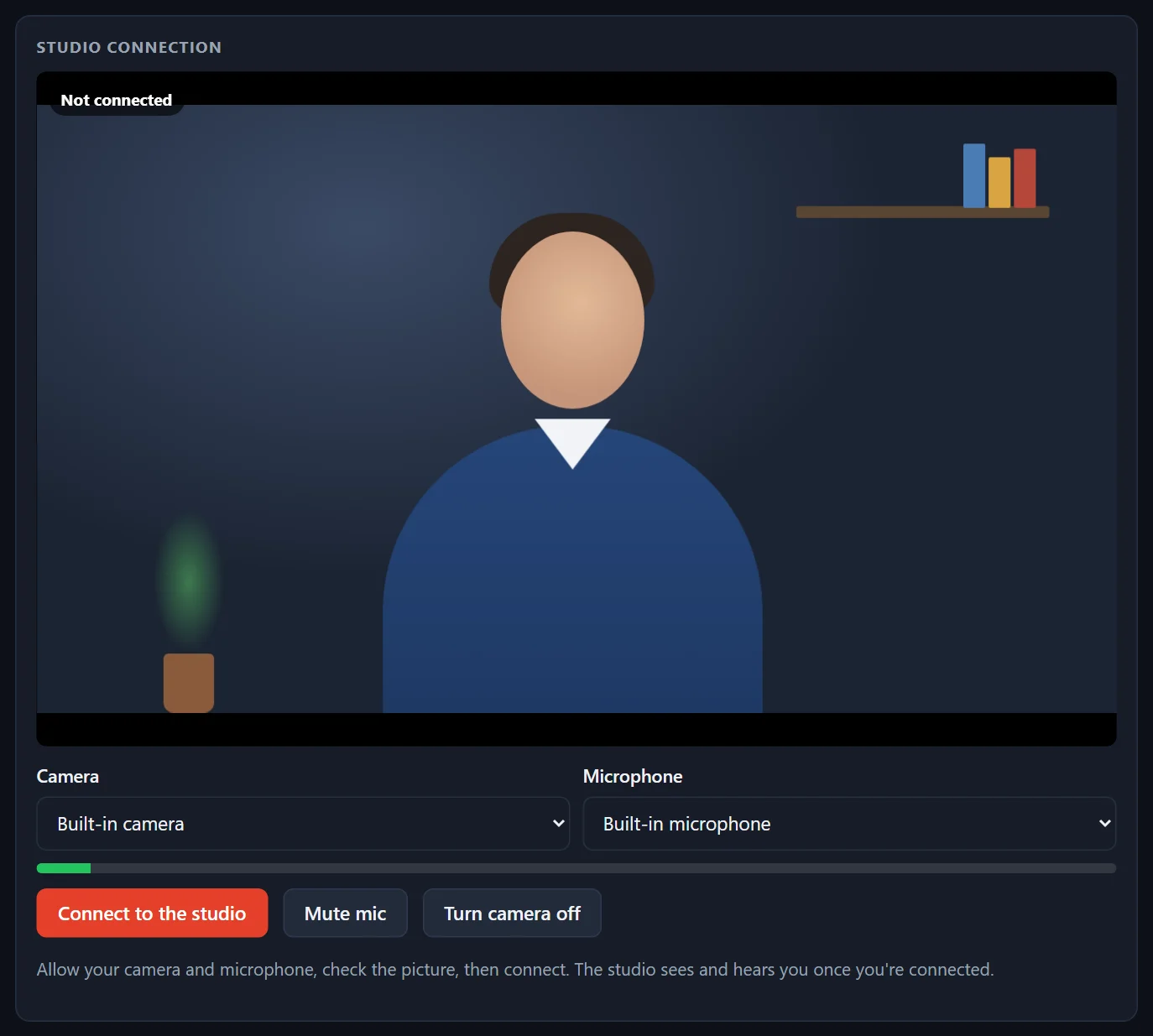
Their page shows their camera picture, a choice of camera and microphone, a level meter and Connect to the studio. Once connected, the badge turns green ("Live to studio"). They can mute the microphone or turn the camera off without disconnecting. If the connection drops, the page tries again by itself.
Example: SRT with MediaMTX
MediaMTX accepts WHIP and serves the same stream as SRT. A minimal mediamtx.yml:
webrtc: true
webrtcAddress: :8889
webrtcAllowOrigins: ['https://presenteringest.com']
srt: true
srtAddress: :8890
paths:
  all_others:
Put it behind HTTPS (for example a reverse proxy with a certificate), then:
- the WHIP address for a seat is
https://your-server/seat1/whip - your studio reads it as SRT from
srt://your-server:8890?streamid=read:seat1
Video arrives as H.264 (up to 720p, about 2.5 Mbps) and audio as Opus. If your software doesn't play Opus over SRT, have the gateway convert the audio to AAC.
Note
WebRTC also needs the server's UDP media port (8189 by default in MediaMTX) reachable from the internet. See your server's documentation for firewall and TURN settings.