
A countdown shows on every presenter's page, on the right of the banner. You set it up first, check it, and only then start it.
Set the time
Choose Length or To a time:
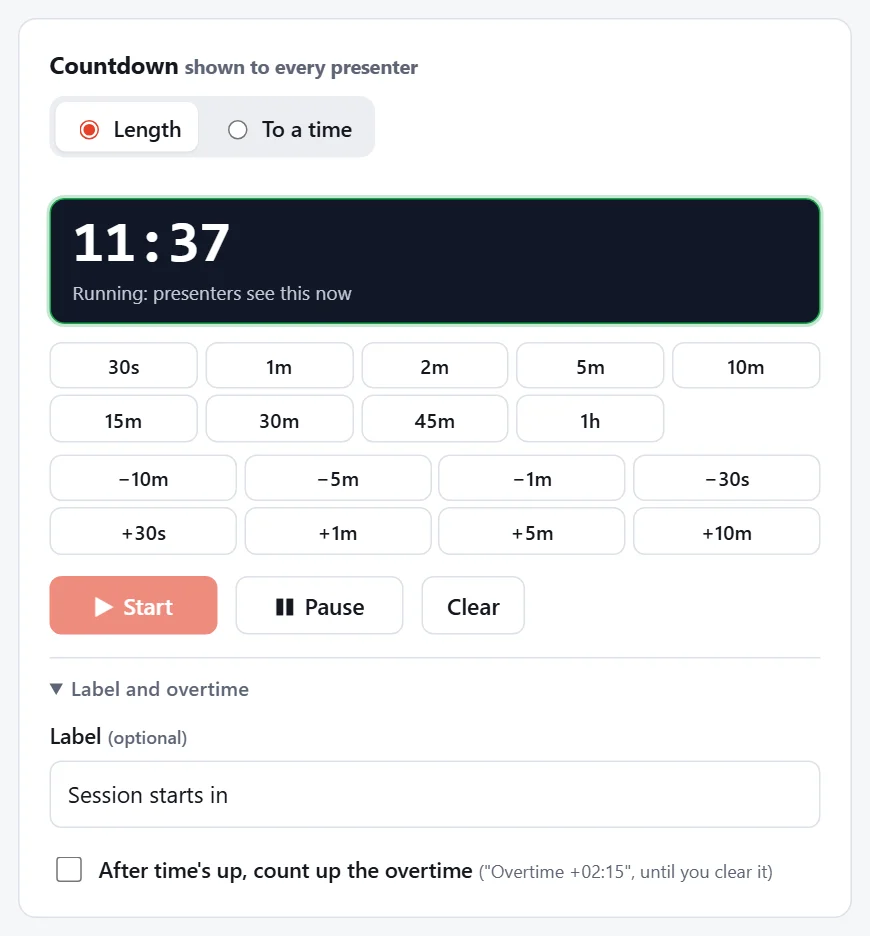
- Length: press a preset (30s, 1m, 2m, 5m, 10m, 15m, 30m, 45m or 1h), then fine-tune with the −10m −5m −1m −30s and +30s +1m +5m +10m buttons. The clock shows the time you've set, marked Not started: presenters don't see it yet.
- To a time: pick the time to count down to, e.g. 14:30. The clock shows how long that is from now.
Start, pause and clear
- Start puts the countdown on every presenter's screen. The clock turns green: "Running: presenters see this now".
- Pause freezes it on presenters' screens. While it's paused, you can change the time with the presets or the +/- buttons, then press Resume.
- Clear takes it off presenters' screens.
While it's running, the presets and +/- buttons change the live countdown straight away.
Label and overtime
Open Label and overtime for two options:
- Label: replaces "Time remaining" on presenters' screens, e.g. "Session starts in".
- After time's up, count up the overtime: instead of stopping at zero and showing "Time's up", the countdown turns red and counts up ("Overtime +02:15") until you clear it. This setting is kept for the booking.
The last minute is highlighted in amber on presenters' screens, and "Time's up" in red.