
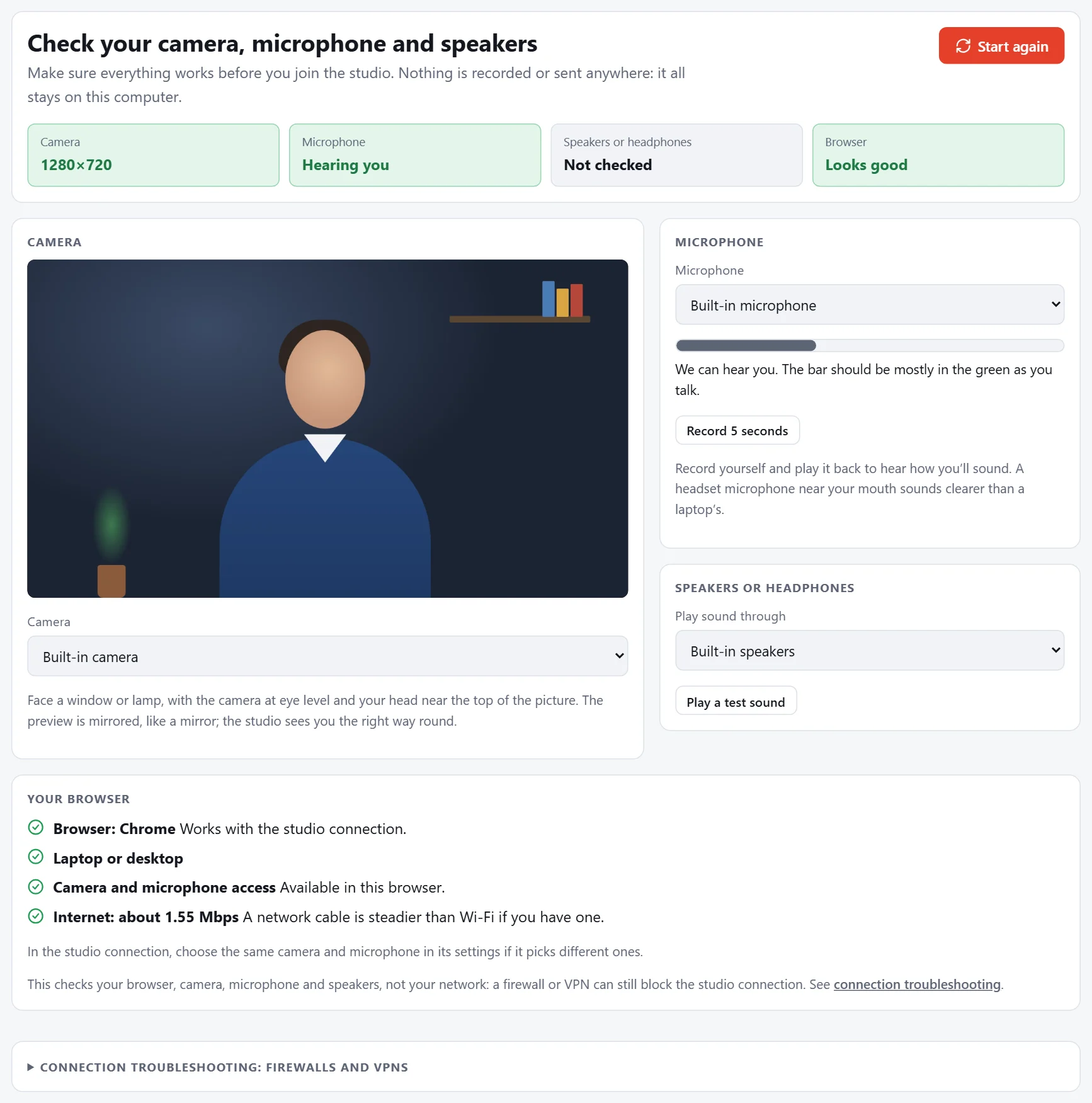
The device check tests your camera, microphone and speakers in about a minute. Nothing is recorded or sent anywhere: it all stays in your browser.
Open it from your presenter page (Check camera, mic & speakers), or anyone can try it at Device check.
Run the check
- Press Start the check and allow the camera and microphone when your browser asks.
- Camera: you should see yourself. Pick another camera from the list if it's the wrong one.
- Microphone: speak and watch the level move. Press Record 5 seconds, then Play it back to hear how you sound.
- Speakers or headphones: press Play a test sound and answer Yes or No.
- Your browser confirms it supports everything the studio connection needs.
Note
Checking from your presenter page uses your camera, so it disconnects you from the studio while you check. When you've finished, choose Back to your presenter page to reconnect.
If you can't hear the test sound
- Turn the volume up, check nothing is muted, and check your headphones are plugged in (or connected, for Bluetooth).
- Open a new tab and play any YouTube video:
- You can hear YouTube: the sound works, so it's this page. Check the tab isn't muted (right-click the tab and choose "Unmute site"), reload and try again.
- YouTube is silent too: it's your computer's sound. Check its sound output (below).
- Windows: right-click the speaker icon by the clock, choose Sound settings, and pick your headphones or speakers under Output.
- Mac: open System Settings › Sound and pick your headphones or speakers under Output.
- Close other apps that might be using your headphones, such as Teams or Zoom.
What the check doesn't cover
The check tests your browser, camera, microphone and speakers. It can't test your network: a company firewall or VPN can still block the studio connection when the check passes. See Troubleshooting if you can't connect to the studio.