
Each seat in a booking is one presenter. Open the booking from Your bookings and scroll to Seats.
What's in a seat
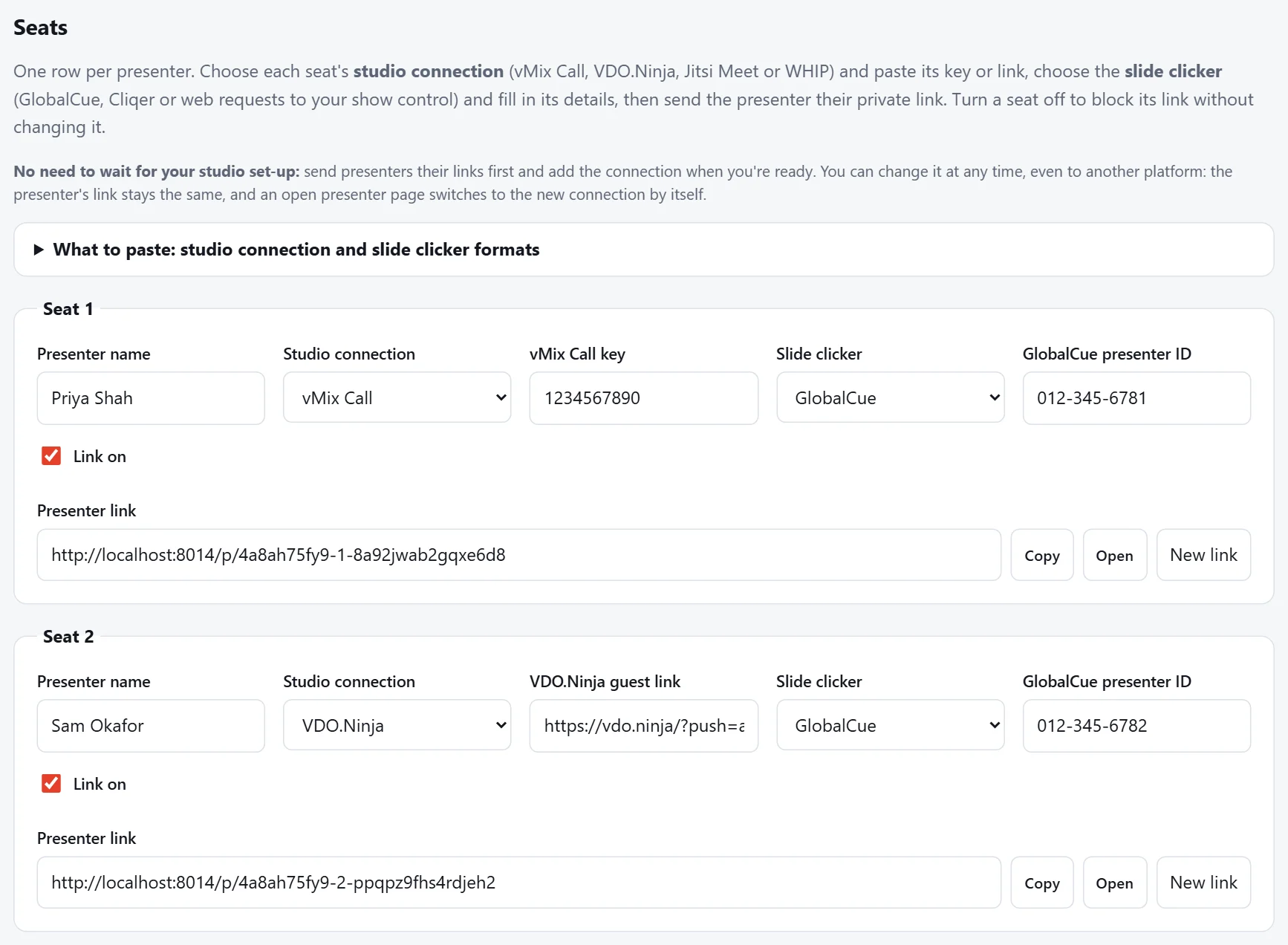
- Presenter name: shown in the studio (vMix, VDO.Ninja, Jitsi) and on the presenter's page.
- Studio connection: how this presenter reaches your studio. Pick vMix Call, VDO.Ninja, Jitsi Meet or WHIP, then paste its key or link in the box that appears.
- Slide clicker: so the presenter can move their own slides. Pick GlobalCue, Cliqer or web requests (for Companion, ProPresenter, vMix and other show control), then fill in the boxes that appear. Leave them blank if the presenter doesn't need a clicker.
- Link on: untick to block the link without changing it, for example if a presenter drops out.
You can fill seats in any order, and leave the connection blank until you have it. The presenter's page shows a message until the connection is ready.
Save your changes
Changes are only kept when you press Save seats. Any seat you've changed is marked Unsaved changes until you save, and the save bar at the bottom says which seats are waiting.
Send each presenter their link
Each seat has its own Presenter link:
- Copy puts the link on your clipboard, to paste into your own email or chat to the presenter.
- Open shows the presenter page as they'll see it.
- New link replaces the link. The old link stops working straight away, so send the presenter the new one.
Important
Each link is private to its presenter: anyone with it can open that seat. If a link may have been shared, press New link.
Links before the studio is ready
Links are fixed from the moment you book, so you can send them straight away and fill in the studio connection later. You can also change the connection at any time, even to another platform. An open presenter page notices within a few seconds and switches over by itself.
When links work
Presenter links work from 2 days before the booking starts, for tech checks, until a few hours after its last day. Before then, presenters see when their link opens and can still check their camera and microphone. Extending the booking keeps the same links.