
If you run slides with Interspace GlobalCue, each presenter can control their own slides from their page. Using something else? See Cliqer or web requests for Companion, ProPresenter, vMix and other show control.
Add the GlobalCue presenter ID
In the presenter's seat, under Slide clicker, choose GlobalCue (the standard choice), then paste their GlobalCue presenter ID: the presenter link from GlobalCue, https://globalcue.live/pres/012-345-6789, or just the ID at the end, three groups of numbers: 012-345-6789 (a made-up example). Press Save seats.
Leave it blank for presenters who don't need a clicker: their page simply doesn't show one.
Simple buttons or GlobalCue's own page
Under Settings › Presenter page you choose what GlobalCue presenters get, for all your bookings:
- Simple buttons: big Back and Forward buttons, and optionally Black screen. The presses go through our server, so the GlobalCue presenter ID never reaches the presenter's browser.
- GlobalCue's own presenter page, inside the presenter page, with its own controls.
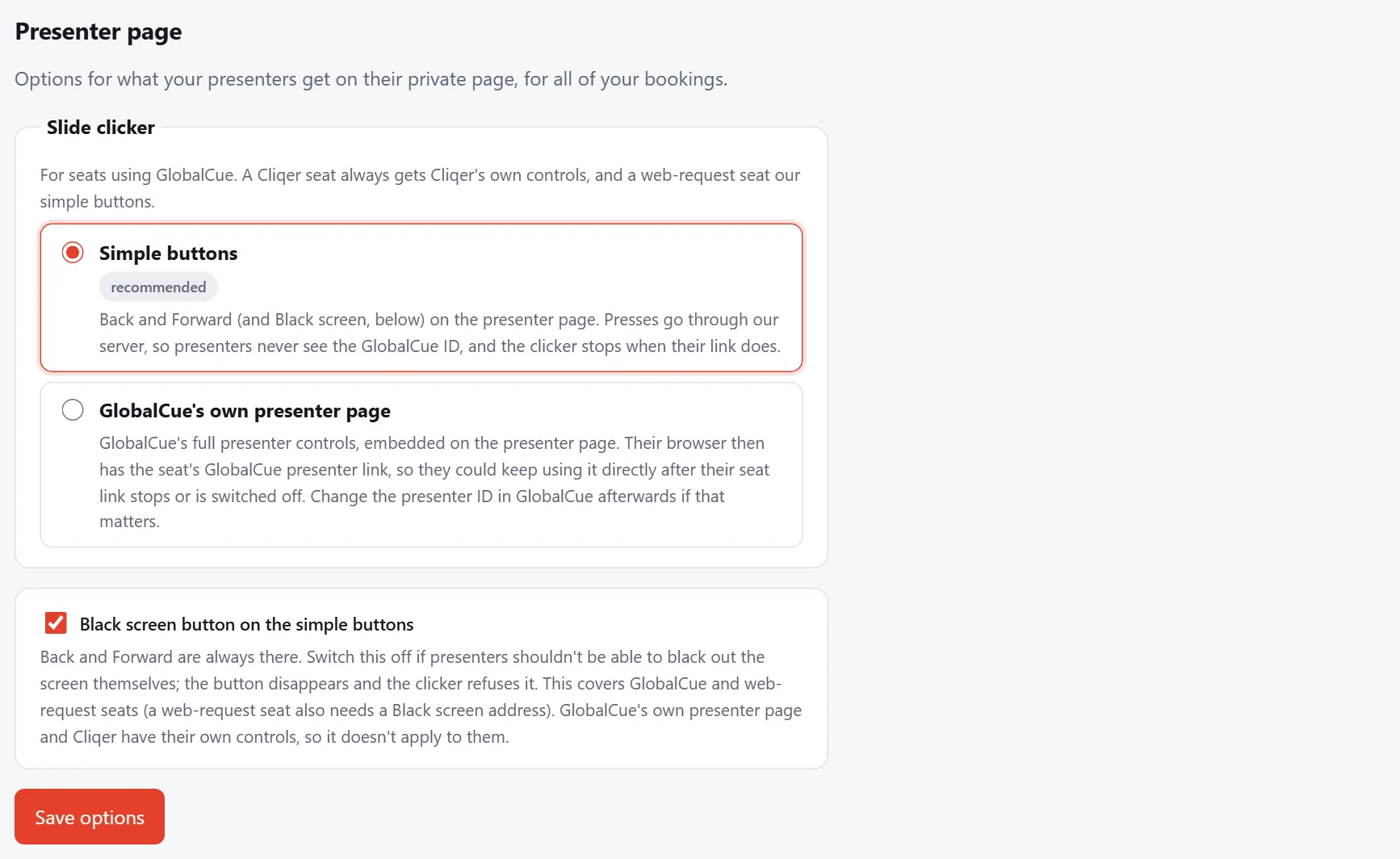
Black screen button on the simple buttons: switch it off if presenters shouldn't be able to black out the screen themselves. The button disappears and the clicker refuses it.
Changes here apply straight away: presenter pages that are already open switch over within a few seconds.
Two screens
Presenters with two screens can press Open in a new window under the clicker, to keep the clicker on one screen and give their studio connection the whole of the other.
Note
If the clicker says "Session paused", that's only the slide clicker (GlobalCue isn't taking presses right now). It doesn't affect the presenter's studio connection.