
If you run slides with Cliqer, the presenter gets Cliqer's own controls on their presenter page, next to their studio connection. Cliqer works with PowerPoint, Keynote and Google Slides through the Cliqer app on the computer showing the slides.
Add the Cliqer room
- In the presenter's seat, under Slide clicker, choose Cliqer.
- Paste the room link from the Cliqer app,
https://cliqer.io/ABC123, or just the room code,ABC123(made-up examples). - Press Save seats.
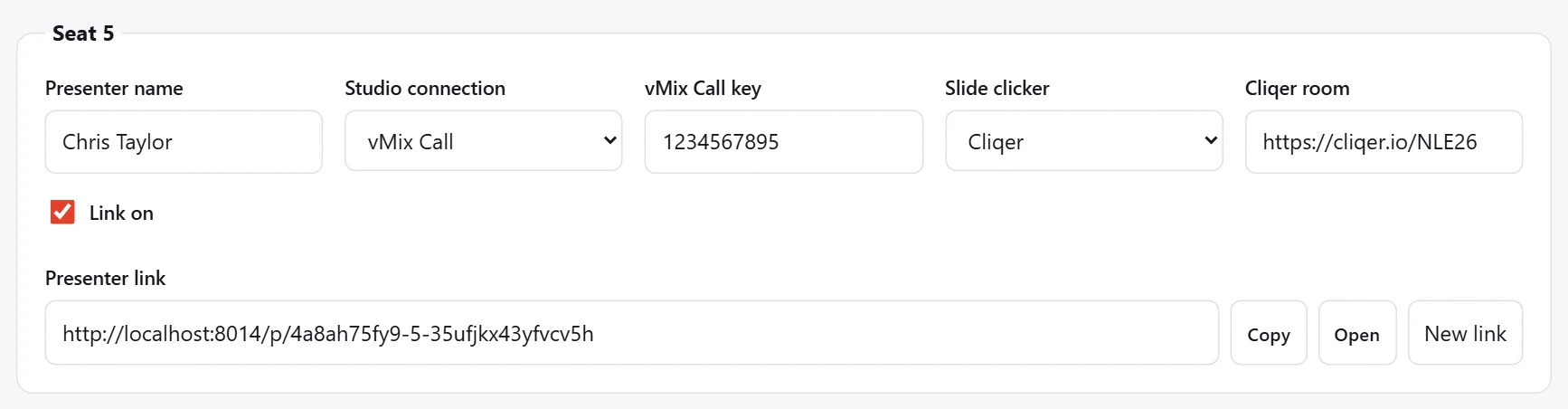
Several seats can use the same room. Each presenter joins with the name in their seat, so you can tell them apart in Cliqer.
Let presenters click
In Cliqer, presenters appear in the room's list when their page is open. Switch on Clicks for each presenter who should move the slides, or turn on Click enabled in Cliqer's settings so everyone who joins can click straight away.
Note
Letting remote presenters click is a paid Cliqer feature. Check that your Cliqer plan includes it before the event.
What presenters see
The Slide clicker panel on the presenter's page shows Cliqer's own presenter controls. Open in a new window moves it to a second screen, like any other clicker.
Important
The presenter's browser is given the Cliqer room link, so they could keep using it directly after their seat link stops or is switched off. After the event, switch their clicks off in Cliqer or use a new room.
The Black screen setting under Settings › Presenter page doesn't apply to Cliqer: Cliqer's own controls and settings decide what presenters can do.