
With web requests, the presenter gets simple Back and Forward buttons, and an optional Black screen button. Each press makes our server call a web address you choose, in the show control you already use: Bitfocus Companion, ProPresenter, vMix or anything else that takes web requests.
The addresses and token stay on our server. They never reach the presenter's browser, and the buttons stop working when the presenter's link does.
Set up a seat
- In the presenter's seat, under Slide clicker, choose Web requests.
- Fill in:
- Forward address and Back address: called when the presenter presses each button.
- Black screen address (optional): leave it blank and the presenter doesn't get the button.
- Send as: POST or GET, whichever your show control expects.
- Token (optional): sent with every request as
Authorization: Bearer <token>, for a server or tunnel that checks one.
- Press Save seats.
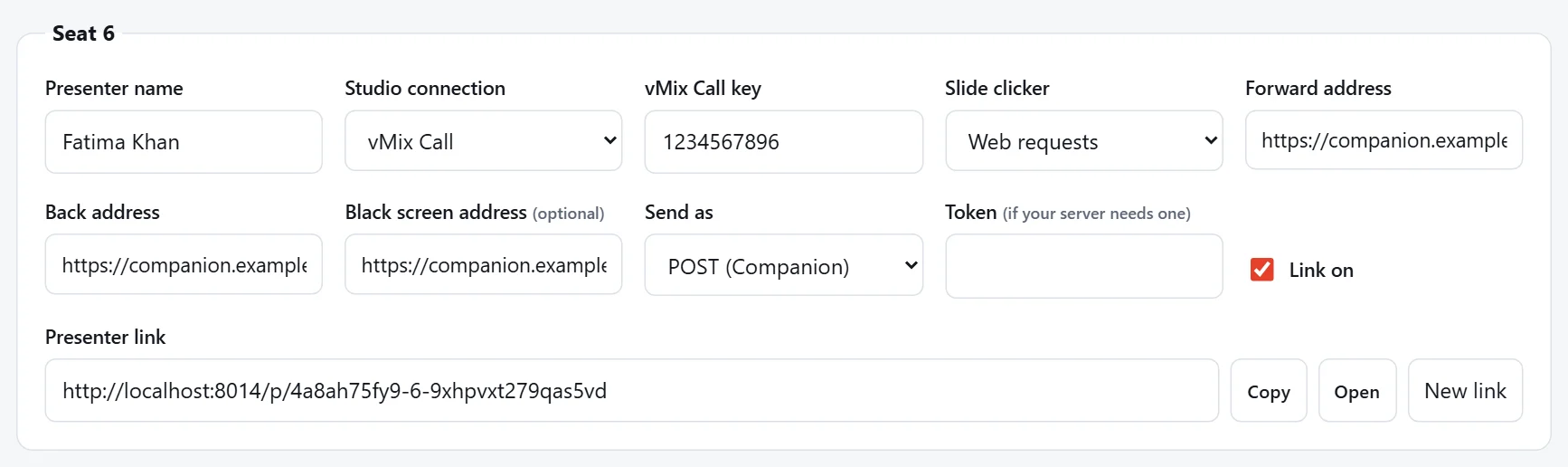
The presenter only gets the buttons that have an address. The Black screen setting under Settings › Presenter page applies too: switch it off and nobody gets a Black screen button.
Examples
These use made-up addresses: put in your own.
Bitfocus Companion (version 3 or later). Make a button in Companion for each action, for example on page 1, then use the button's page, row and column, and send as POST:
- Forward:
https://companion.example.com/api/location/1/0/1/press - Back:
https://companion.example.com/api/location/1/0/0/press
Companion can then drive PowerPoint, Keynote, ProPresenter, vMix and much more, so this is the most flexible option.
ProPresenter 7. Switch on Network in ProPresenter's settings and enable the API. Use its trigger next and trigger previous addresses, for example http://203.0.113.10:50001/v1/trigger/next and .../v1/trigger/previous, and send as GET. Check the paths for your version in the ProPresenter API reference.
vMix with a PowerPoint input. Switch on the Web Controller in vMix's settings, then send as GET:
- Forward:
http://203.0.113.10:8088/api/?Function=NextItem&Input=Slides - Back:
http://203.0.113.10:8088/api/?Function=PreviousItem&Input=Slides
where Slides is the name of your PowerPoint input.
Make it reachable from the internet
The requests come from our server on the internet, so your show control has to be reachable from there. Addresses on a private network, such as 192.168.…, 10.… or localhost, are refused.
The safest way is a tunnel, such as Cloudflare Tunnel, ngrok or Tailscale Funnel. It gives your show control a public https address without opening ports on your router.
Warning
Companion's web control and vMix's Web Controller have no password of their own by default. Anyone who finds the address can press your buttons. Use a tunnel with a long, hard-to-guess address. If your tunnel or proxy can check a bearer token, set one and put it in Token. Close the tunnel after the event.
Test it
Open the presenter link yourself and press Forward. The button flashes green when your show control answers with success, and red when it doesn't answer, answers with an error, or takes longer than 4 seconds.
To protect your show control, each presenter can send at most 4 clicks a second and 60 a minute, one at a time: a click while the last one is still waiting for your show control's answer is refused. Refused clicks never reach your show control, and the button flashes red. A real presenter never gets near these limits.