
The organiser of your event has sent you a private presenter link. It opens your presenter page: everything you need to present remotely, on one page. There's nothing to install and nothing to sign in to.
Before you start
- Use Chrome, Edge or Safari on a laptop or desktop computer.
- Wear headphones, so the studio doesn't hear itself back through your microphone.
- Use a wired connection if you can, or sit close to your wi-fi router.
- Close other video apps, such as Teams or Zoom, which can hold on to your camera.
- Run the camera, mic and speaker check first.
Connect to the studio
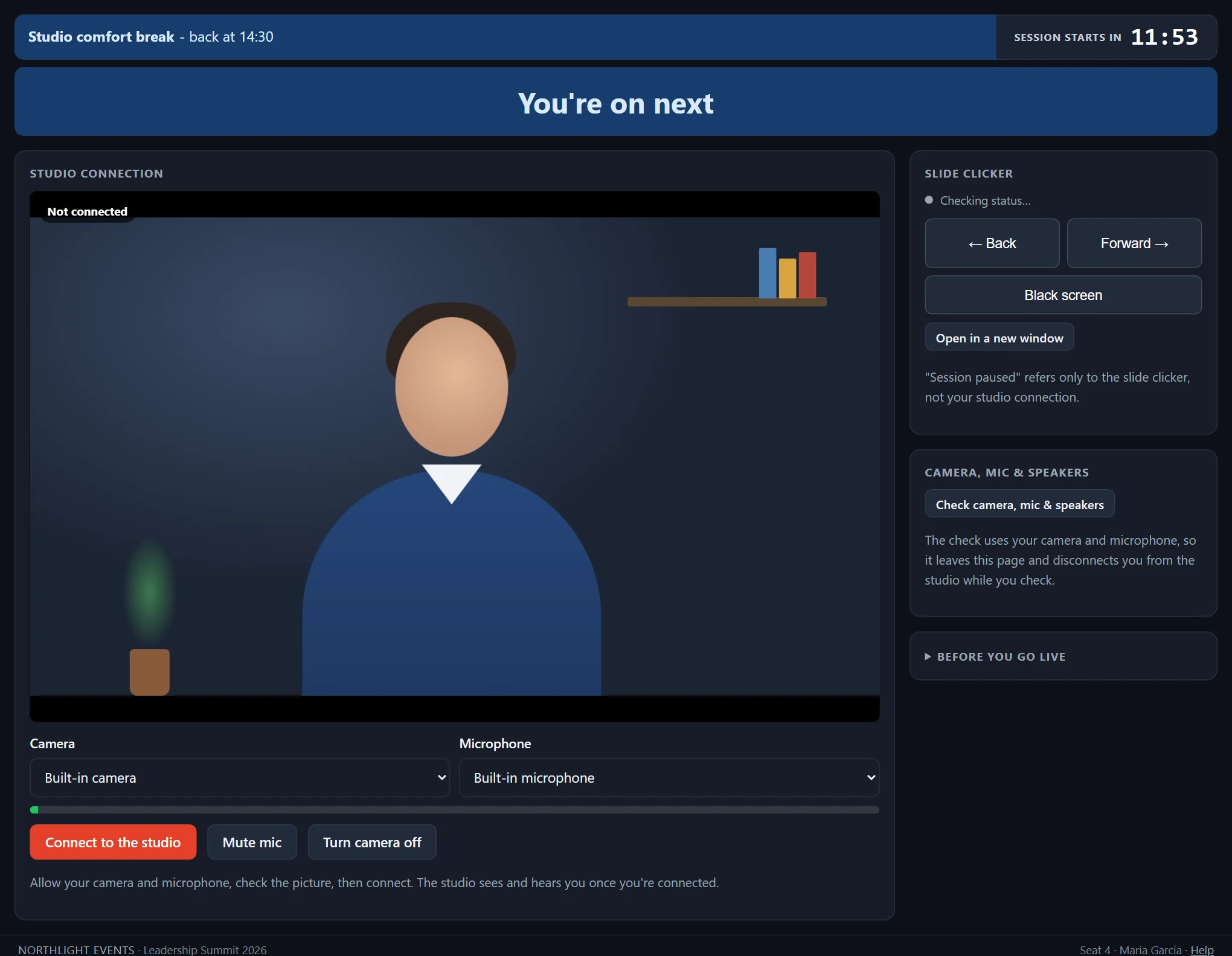
Open your link. Your studio connection is in the middle of the page. When your browser asks, allow the camera and microphone. Depending on how the studio has set you up, you then connect in the panel itself, for example by pressing a button to join or to connect to the studio.
Keep the page open while you present. The studio can see that you're connected, and the page updates itself when the studio sends a message or changes your set-up.
Note
Your link works from a couple of days before the event, so you can test with the studio. If you open it earlier, the page tells you when it opens.
Messages from the studio
The studio can put messages on your page. You don't need to do anything to see them:
- A banner across the top, for all presenters, such as "Stand by" or "Comfort break, back at 14:30".
- A countdown on the right of the banner. In its last minute it turns amber, then "Time's up". It may count up in red ("Overtime") if you run over.
- A cue just for you, such as "You're on next", "You're live" or "Please wrap up".
The slide clicker
If you control your own slides, the Slide clicker panel has Back and Forward buttons, and sometimes Black screen. Some studios use Cliqer instead: you then see Cliqer's own controls in the panel, and the studio switches your clicks on when you join.
Got two screens? Press Open in a new window under the clicker to move it to the other screen, so the studio connection can fill this one.
Audience Q&A
If the event has an audience Q&A, such as Slido, it's under the slide clicker so you can see the questions. Press Q&A to fold it away, or Open in a new window to move it to a second screen; Show it here brings it back.
Questions and help
Your organiser's contact details are at the bottom of the page, and appear whenever your link isn't working. If something's wrong, see Troubleshooting or contact them.
Important
Your link is just for you. Please don't forward it.