
VDO.Ninja sends the presenter's camera and microphone peer to peer, and you bring them into OBS, vMix or other software as a browser source. VDO.Ninja runs inside the presenter's page, next to their clicker and your cues.
Set it up
- Choose a stream ID for the presenter, for example
a1b2c3d(made up: use your own). - In your studio software, add a browser source with the view link:
https://vdo.ninja/?view=a1b2c3d - On your booking, in the presenter's seat, choose Studio connection: VDO.Ninja and paste the guest link,
https://vdo.ninja/?push=a1b2c3d, or just the stream IDa1b2c3d. - Press Save seats.
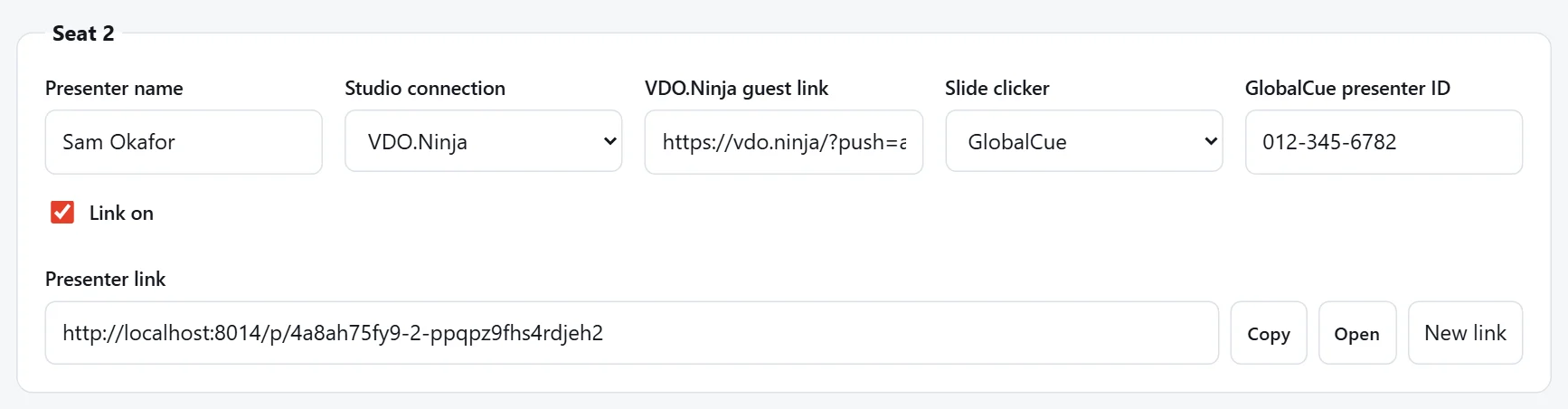
What you can paste
- The guest (push) link:
https://vdo.ninja/?push=a1b2c3d, with any other VDO.Ninja options you use, such as&quality=1or&room=.... - Just the stream ID:
a1b2c3d. We make the guest link for you. - The view link:
https://vdo.ninja/?view=a1b2c3d. We turn it into the guest link for the same stream.
Only links on vdo.ninja are accepted. The presenter's name from the seat is added as the VDO.Ninja label, unless your link already sets one.
Tip
On the presenter page, VDO.Ninja asks the presenter to share their camera and pick their devices. Ask them to do this on the day of their tech check, so you can set up the browser source while they're connected.